


How to Connect Your Phone Bluetooth to Your Car
- Ethan Cross
Driving without distractions is essential, but that doesn’t mean you have to cut yourself off from your music or urgent phone calls. Modern vehicle infotainment systems allow you to bridge your smartphone to your dashboard using wireless technology, transforming your car cabin into an extension of your digital space.
By taking two minutes to synchronize these systems, you unlock crystal-clear navigation prompts, instant voice commands, and your personal audio library. Best of all, you keep your eyes locked on the road ahead where they belong.
How to Establish the Wireless Link
To make the connection work, both devices must actively look for each other at the exact same moment. Follow these precise steps to get them integrated.
Phase 1: Activate Discovery on the Dashboard
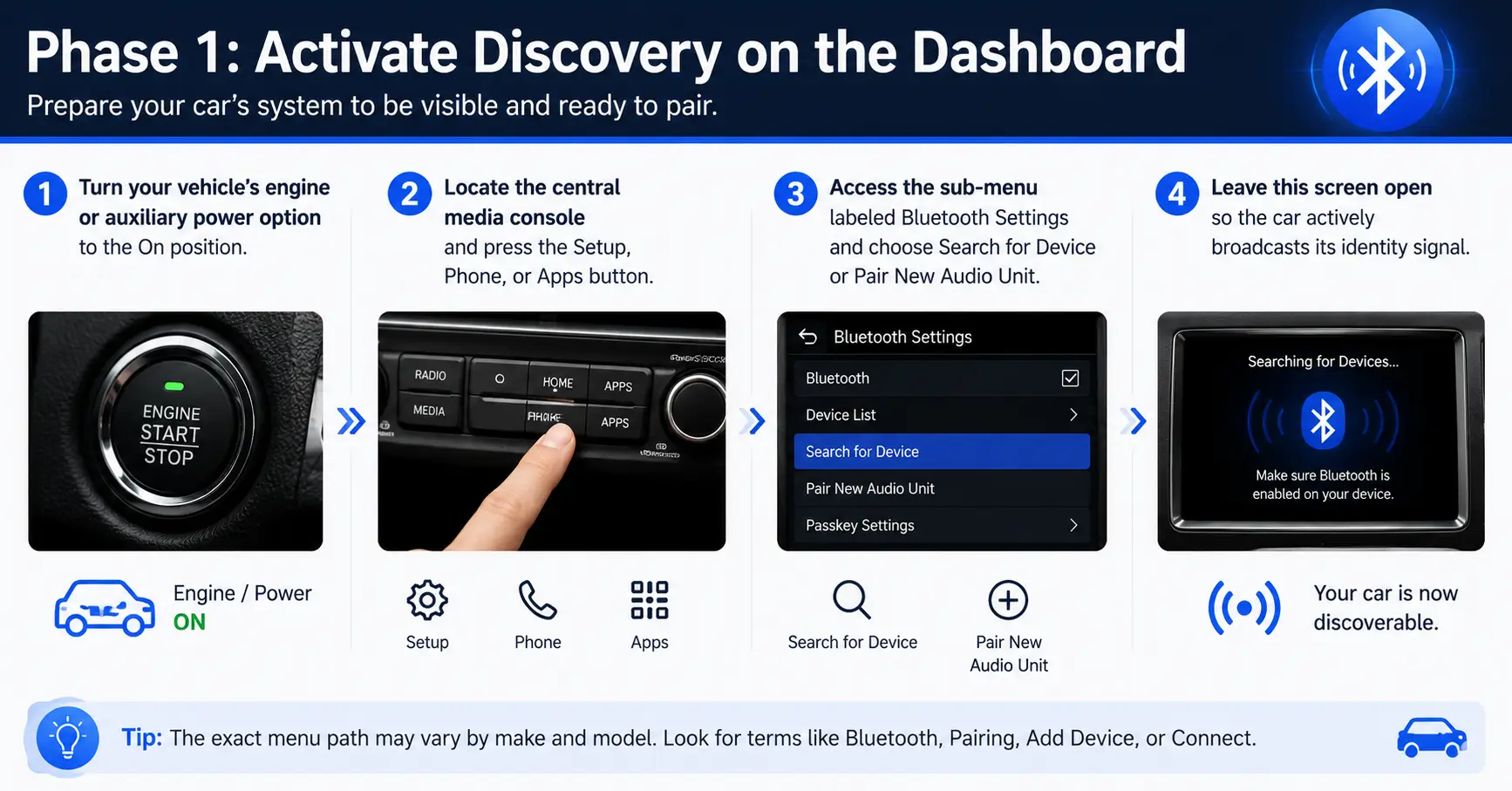
- Turn your vehicle’s engine or auxiliary power option to the On position.
- Locate the central media console and press the Setup, Phone, or Apps button.
- Access the sub-menu labeled Bluetooth Settings and choose Search for Device or Pair New Audio Unit.
- Leave this screen open so the car actively broadcasts its identity signal.
Phase 2: Search from Your Mobile Screen

- Unlock your phone, pull down the status panel, and select Settings.
- Tap the Wireless & Networks or Connected Connections category.
- Select Bluetooth and switch the main toggle to active.
- Scan the list under Available Equipment until you spot your vehicle’s custom hardware name.
Phase 3: Lock the Security Verification

- Tap the name of your car on your smartphone interface.
- Look at both displays to verify that the displayed registration passkey numbers match identically.
- Select Accept or Confirm on the dashboard, and press Link on your handset.
- Check your phone’s notification shade and click Allow when asked to share your call log and contact address book.
Quick Diagnostics for Synchronization Errors
If the pairing sequence fails to complete or times out, a minor software conflict is likely stalling the communication loop. Try these rapid fixes to clear the block:
- Clear Out the Car Memory: Vehicle head units frequently reject new links if their internal registry is packed. Enter the car’s storage menu, look for Paired List, and erase any ancient profiles from old devices.
- Force a Hardware Cycle: Drop your phone into Airplane Mode for roughly fifteen seconds, disable it, and then retry the connection process. This cuts and restarts all internal radio antennas instantly.
- Keep the Screen Awake: Many mobile operating systems instantly hide their signal beacon when the screen goes dark. Keep tapping your display to prevent the phone from locking mid-scan.
The Ultimate Fix: Purge the Bluetooth Stack
Persistent errors usually mean the smartphone’s wireless cache file has become corrupted. If nothing else has worked, you need to flush out the communication system entirely.
Reset Your Phone’s Wireless Configuration

- Enter the main Settings dashboard on your handset.
- Choose System Configuration or Advanced Administration, then tap Reset Options.
- Select Reset Network Configuration (this targets only cellular, Wi-Fi, and Bluetooth parameters).
- Tap the final Confirm Reset button and restart your phone.
Important: This procedure will erase all previously memorized wireless data profiles. Once the phone boots back up, you will have a perfectly fresh slate to perform the initial pairing steps successfully.
