


How to Check Battery Health in Android (Step-by-Step)
- Ethan Cross
Smartphone batteries are like car tires they inevitably wear out the more you use them. If your device is dying faster than it used to, knowing your power cell’s maximum capacity is the first step toward troubleshooting performance issues.
To check battery health in Android, simply navigate to Settings > Battery > Battery Health (available natively on Android 16 or newer for devices like Google Pixel). If you use a Samsung device, open the pre-installed Samsung Members app, select Support, and run the Battery Status diagnostic. Older or alternative devices can instantly use hidden dialer codes or download a dedicated analysis app like AccuBattery from the Google Play Store.
Quick Comparison: Ways to Check Your Android Battery Health
Before diving into the detailed step-by-step guides, here is a quick look at your options based on your device type and needs:
| Method | Best For | Precision | Setup Time |
|---|---|---|---|
| Settings Menu | Pixel (Android 16+) & Samsung devices | High (Official OEM Data) | Instant |
| Secret Dial Codes | Legacy Android versions & quick diagnostics | Medium (Device-dependent) | Under 1 minute |
| Third-Party Apps | In-depth historical tracking & wear analysis | Very High (Calculated over time) | 2–3 charge cycles |
How to Check Battery Health in Android Natively
Google has streamlined native battery monitoring across the ecosystem. However, because the Android platform is customized by different manufacturers, the exact steps vary depending on your phone’s brand.
Google Pixel & Stock Android
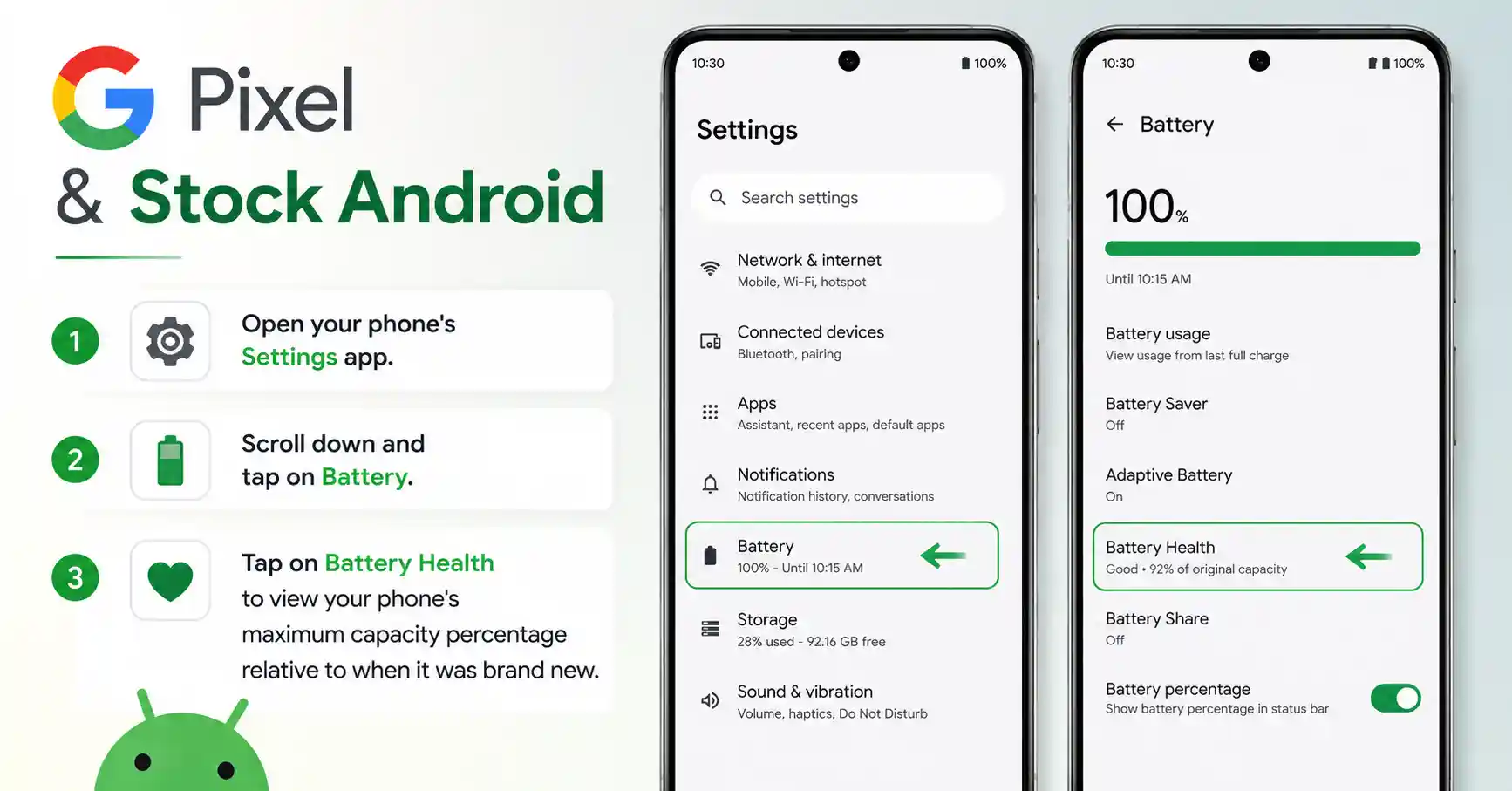
- Open your phone’s Settings app.
- Scroll down and tap on Battery.
- Tap on Battery Health to view your phone’s maximum capacity percentage relative to when it was brand new.
Samsung Galaxy Devices

Samsung handles diagnostics beautifully through its own dedicated ecosystem rather than the standard settings app.
- Launch the Samsung Members app (pre-installed on your Galaxy phone).
- Tap the Support tab located in the bottom-right corner of the screen.
- Select Phone Diagnostics, then tap on Battery Status to view your overall health rating and total capacity.
Xiaomi, OnePlus, & Other OEMs

Many modern flagship devices running recent Android skins now include this feature under their custom power menus. Simply navigate to Settings > Battery > Battery Health & Charging to see if your specific manufacturer has unlocked the maximum capacity metric.
Check Battery Health on Android Using Secret Dial Codes
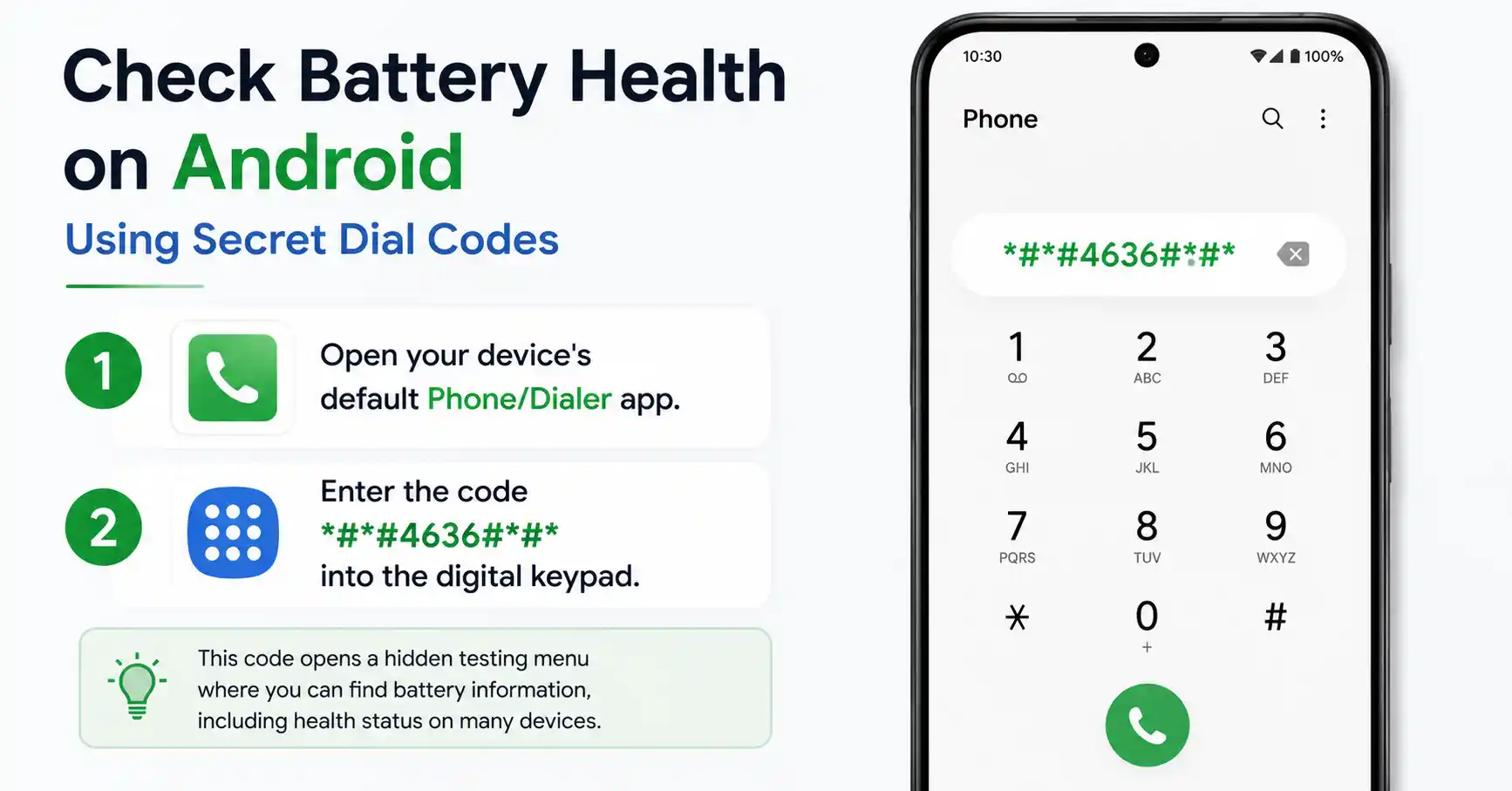
If your phone hasn’t received the latest software updates or completely lacks a built-in menu, you can bypass the main interface using hidden developer codes. These codes open legacy diagnostic menus built directly into the Android core framework.
- Open your device’s default Phone/Dialer app.
- Enter the code
*#*#4636#*#*into the digital keypad. - If your device supports it, a hidden Testing menu will instantly appear. Tap on Battery information.
Safety Warning: These menus are engineered primarily for hardware technicians. Do not modify any network, radio, or connectivity settings inside this screen, as doing so can disrupt your cellular service.
Note: Samsung users can also try dialing *#0228# to bring up a specialized status screen displaying real-time battery voltage, values, and stability metrics.
Advanced Diagnosis: Tracking Android Battery Health with Apps
When native settings and secret codes fail, specialized third-party software can fill the gap. The absolute gold standard for this is AccuBattery, an app that scientifically measures real-time charging currents to calculate your true physical capacity.

- Download and install AccuBattery safely from the Google Play Store.
- Open the app and follow the brief calibration steps to match your phone’s design capacity.
- Use your phone normally for two to three days, letting it drain below 15% before charging it back up fully.
- Navigate to the Health tab inside the app to see your calculated health percentage and precise remaining milliampere-hours (mAh).
Unlike static system estimates, these diagnostic apps calculate health dynamically. They monitor voltage strain and thermal spikes during active charging sessions to provide an incredibly accurate real-world wear layout.
3 Expert Tips to Prolong Android Battery Life
Knowing your battery health score is only half the battle. To slow down chemical degradation and keep that capacity percentage high, implement these proven hardware practices:
- Master the 20-80% Charging Rule: Lithium-ion cells experience the highest physical stress when they are completely empty or completely full. Try to plug your device in when it drops to 20% and unplug it around 80% to double its lifespan.
- Enforce Strict Thermal Discipline: Heat is the absolute silent killer of internal smartphone hardware. Avoid intense 3D gaming sessions while your phone is plugged into a fast charger, and never leave your device sitting on a hot car dashboard.
- Leverage AI Adaptive Charging: If you charge your phone overnight, turn on Adaptive Charging or Smart Charging in your system settings. This feature caps your phone at 80% for most of the night and dynamically finishes the final 20% right before your morning alarm rings.
Conclusion: Is Your Battery Holding Up?
Monitoring your hardware performance ensures you aren’t caught off guard by an unexpected mid-day shutdown. If your native capacity has dropped below 80%, it is generally time to visit an authorized service provider for a quick battery replacement to restore your phone to peak performance.
How does your current percentage look? Drop your phone model and its current battery health score in the comments section below!
