


How to Change Default Apps on Xiaomi Phones
- Ethan Cross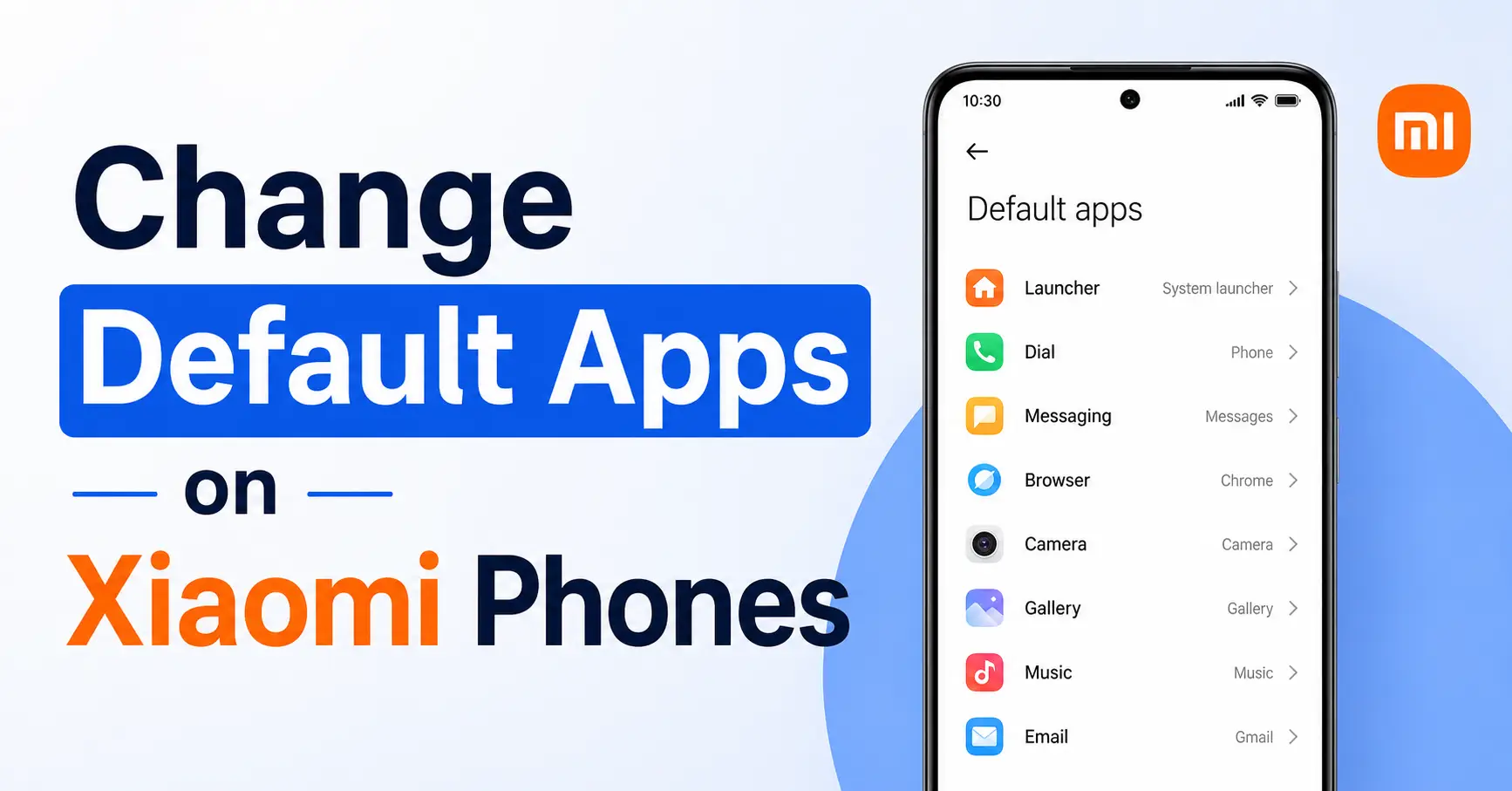
When you unbox a brand-new Xiaomi, Redmi, or POCO smartphone, it comes pre-configured with the manufacturer’s preferred software ecosystem. Actions like opening a website link, clicking a phone number, or checking your messages instantly trigger built-in system programs like the Mi Browser, native dialer, or stock messaging tools. Transitioning to your preferred applications ensures an optimized user experience tailored directly to your needs. This complete, user-friendly tutorial will show you exactly how How to Change Default Apps on Xiaomi Phones.
1. Finding the Default App Menu (MIUI vs. HyperOS)
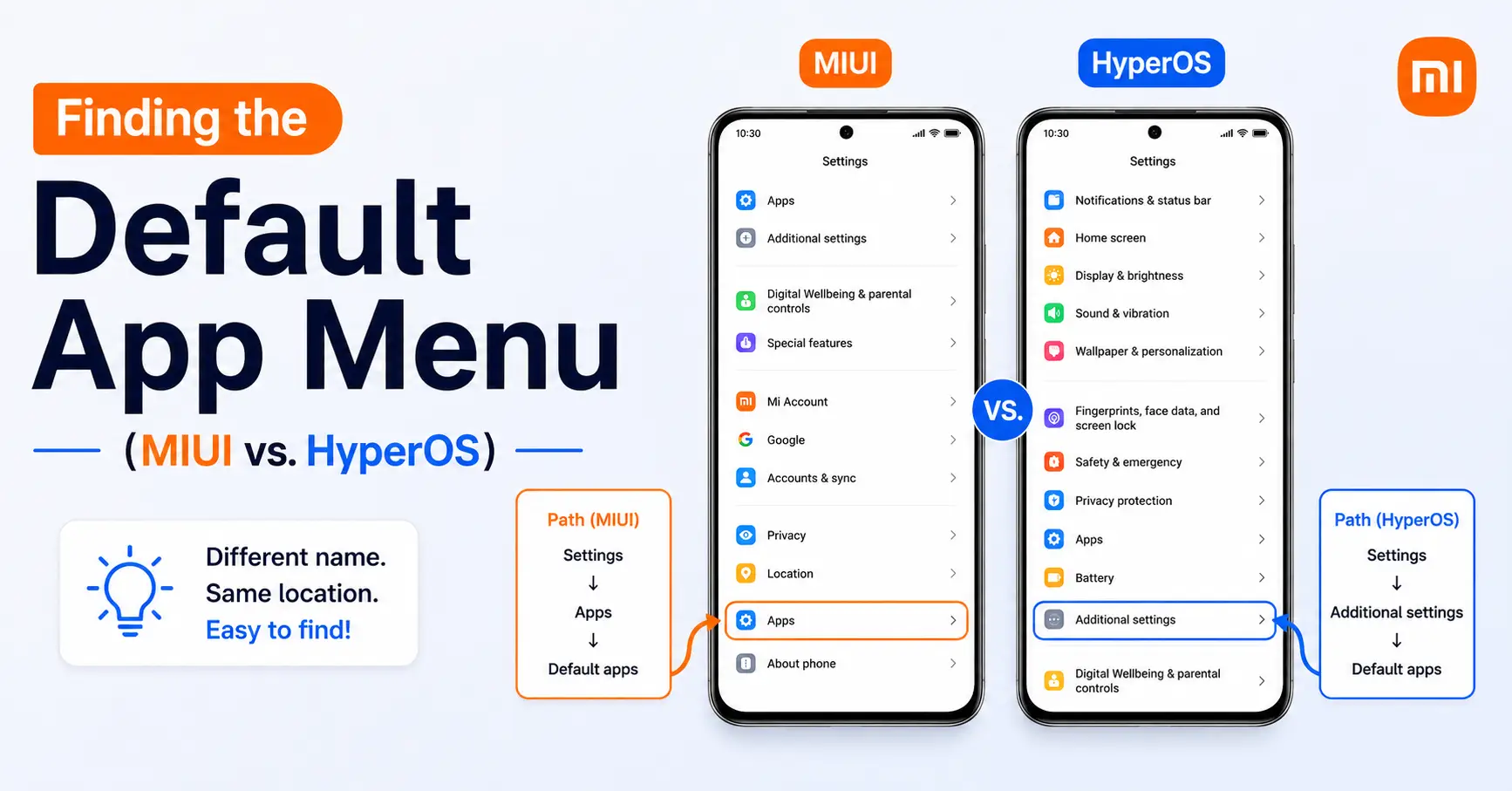
Xiaomi’s user interfaces organize core properties cleanly, but minor navigation steps vary depending on whether your smartphone operates on the classic MIUI architecture or the newer HyperOS framework. Use the direct system paths below to find the correct configuration window.
For Devices Running Xiaomi MIUI (MIUI 12, 13, or 14)
If your device uses the traditional MIUI software skin, navigate through your options using this precise pathway:
- Open the main Settings app from your home screen or app drawer.
- Scroll downward and tap on Apps.
- Select Manage apps from the sub-menu list.
- Locate the three vertical dots (menu icon) positioned in the top-right corner of the interface and tap them.
- Select Default apps from the contextual drop-down menu that appears.
For Devices Running Xiaomi HyperOS
For newer smartphones running Xiaomi’s unified HyperOS skin, use this updated navigation path:
- Launch the primary Settings menu on your smartphone.
- Scroll down through the main index and select Apps.
- Tap on Manage apps to view your full application manager.
- Tap the three vertical dots located in the upper right-hand corner of your display.
- Select Other settings, then tap on Default apps to open the configuration pane
2. Individual Category Breakdown
Once you arrive at the central configuration menu, you will see a neatly categorized list of essential smartphone operations. Here is how to adjust the most critical categories to improve your everyday efficiency:
Web Browser

The factory installed web browser can sometimes display unwanted advertisements or pushy notifications that clutter your screen. To switch to a cleaner, more reliable alternative like Google Chrome, Mozilla Firefox, or Brave:
- Tap on the Browser option within the default apps list.
- Review the list of web browsers currently installed on your device.
- Select your preferred application (such as Chrome) to lock it in as your new system standard.
Start Launcher (Home Screen)
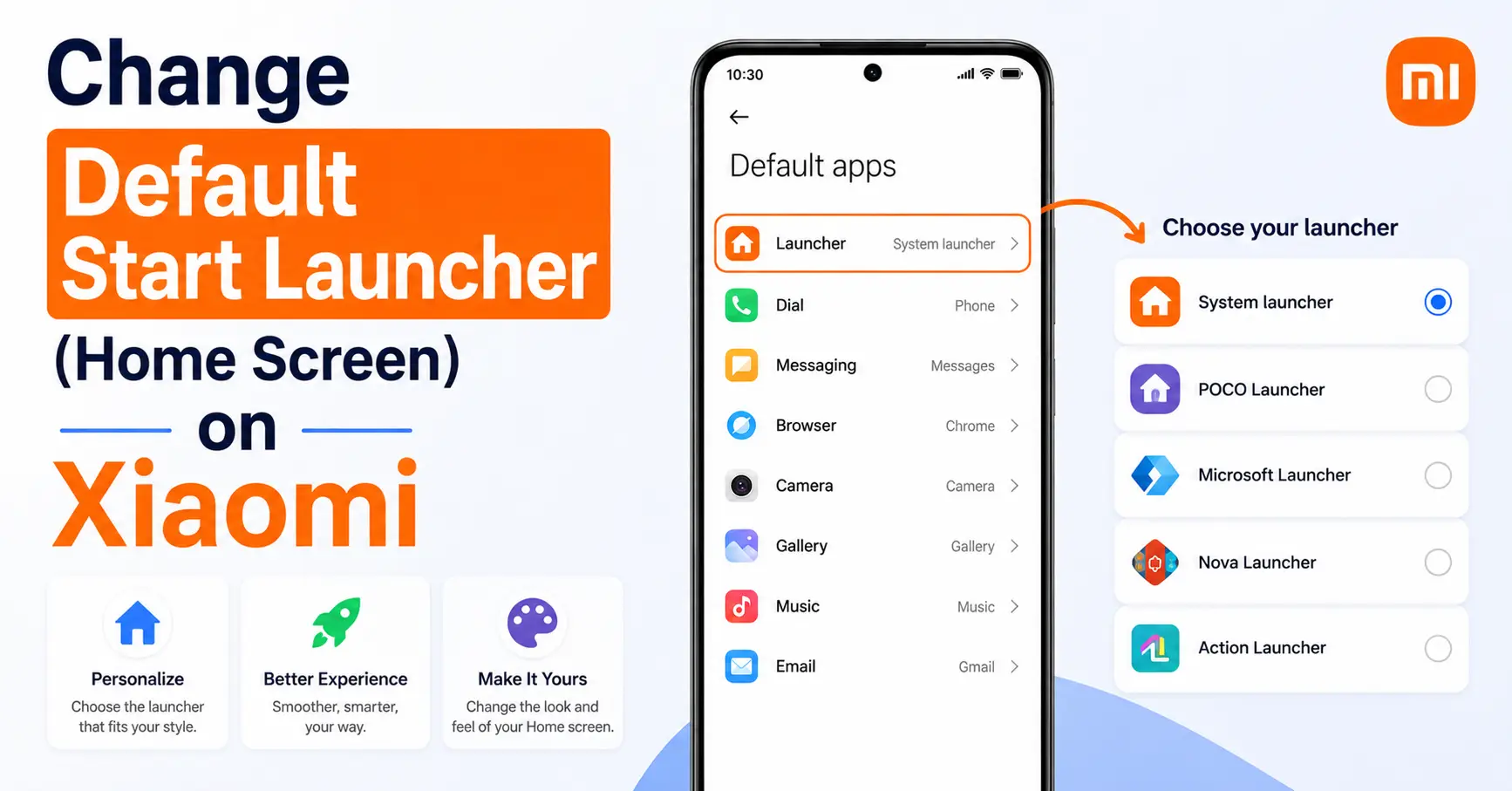
The integrated system launcher controls how your desktop layout, swipe gestures, and app drawers function. If you prefer utilizing advanced layout configurations, custom icon packs, or unique transition effects, switching launcher software is necessary:
- Select the Launcher (or Home screen) option from the management list.
- Tap the third-party launcher you have previously downloaded from the Google Play Store (such as Nova Launcher or Microsoft Launcher).
- Confirm your selection when prompted by the operating system.
Phone / Dialer
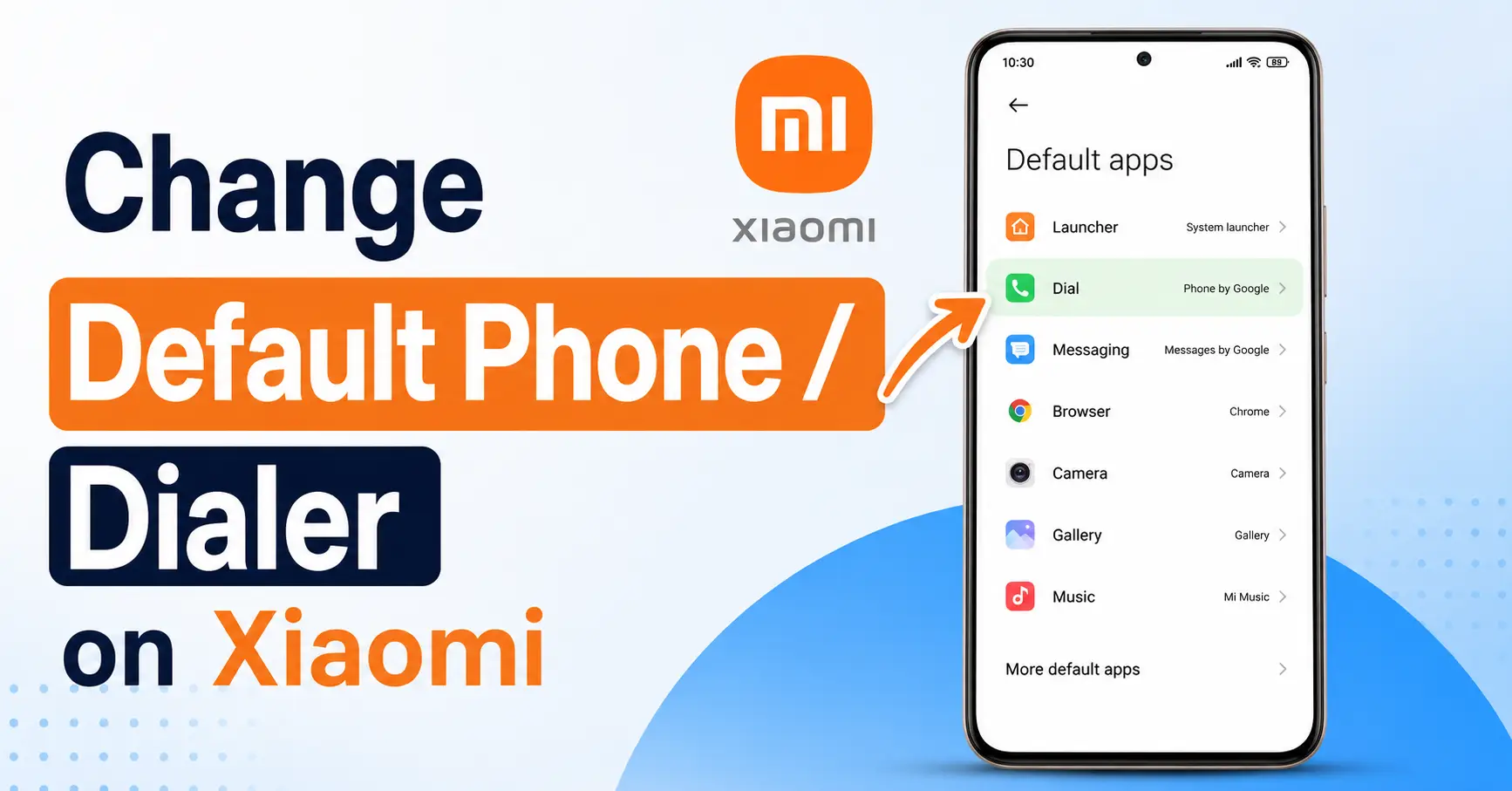
Alternative dialer applications frequently provide superior Caller ID verification and robust telemarketing filter systems compared to standard options. To reassign this function:
- Tap on the Dial or Phone entry line.
- Check the bubble next to your preferred software tool, such as Google Phone or Truecaller.
- Grant the newly assigned application any required core phone permissions when prompted to ensure it runs correctly.
Messages (SMS)
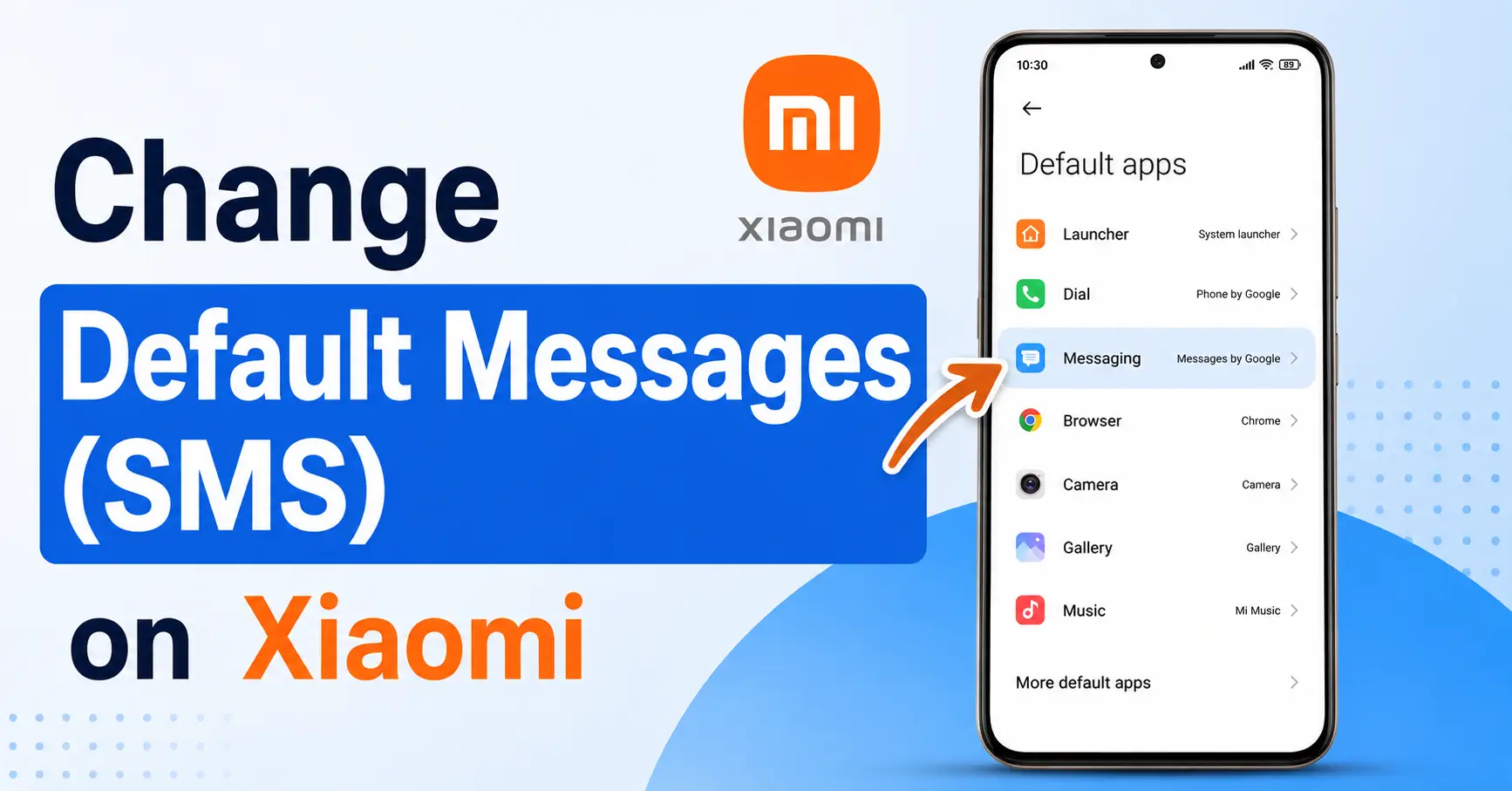
Modern mobile communication relies heavily on Rich Communication Services (RCS) to send high-resolution media, read receipts, and typing indicators over Wi-Fi networks. Switching to a modern utility unlocks these rich communication traits:
- Select the Messaging option from the configuration table.
- Choose your preferred communication tool from the available list (such as Google Messages).
- Open the application once to ensure proper SMS data migration is completed.
3. Practical Tips & Troubleshooting
What to do if the system automatically resets your default apps or requests permissions again:
Xiaomi’s background engine uses strict automated battery management features designed to maximize battery life. This system behavior can inadvertently terminate background threads for third-party tools, causing your default application selections to drop and revert back to stock factory values.
How to fix it:
- Go to Settings > Apps > Manage apps and find your chosen default application from the list.
- Locate the Autostart toggle switch and turn it ON. This ensures the background processes launch reliably when your phone restarts.
- Tap on the Battery saver option located within that individual app’s properties menu.
- Change the configuration from the recommended standard to No restrictions. This prevents background services from being closed by power-saving routines.
Final Verdict
Customizing your smartphone’s defaults is a highly effective way to create a more streamlined user experience on your Xiaomi, Redmi, or POCO device. Reassigning core daily operations to web browsers, launchers, and messaging suites that suit your lifestyle eliminates minor friction points and speeds up your workflow. Take a few minutes to configure these options and build a mobile workspace that matches how you use your phone.
