

How to Transfer Data from Android to iPhone
- Ethan Cross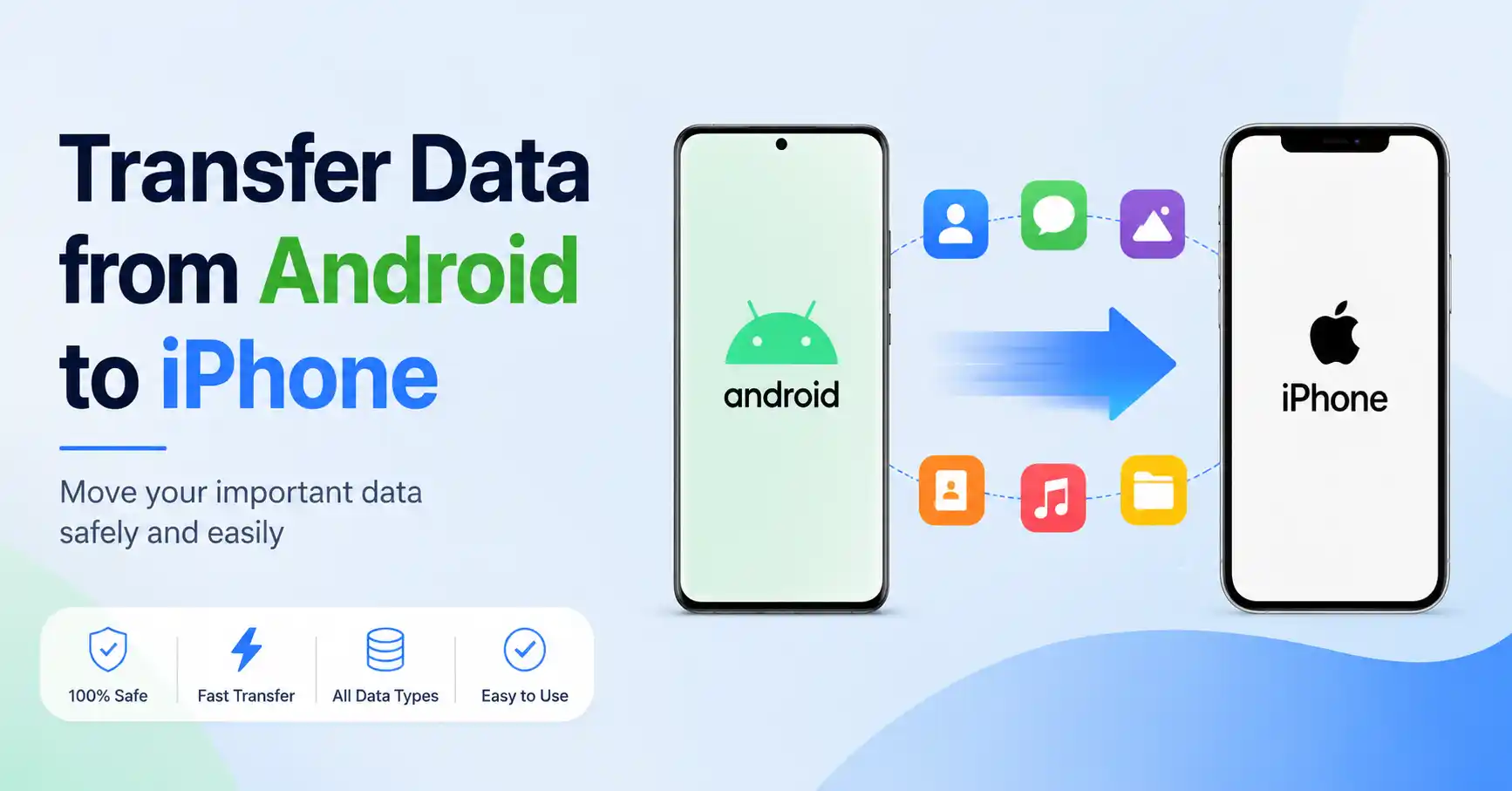
In this guide, we will show you exactly how to transfer data from android to iphone without losing your mind. We will cover the official Apple utility, manual sync options just in case you’ve already started using your new device, and the specifics of handling tricky apps like WhatsApp.
Essential Prerequisites Before You Start
Before initiating any android to ios data transfer, you need to prep both devices. Skipping these basic steps is the number one cause of failed transfers and corrupted files.
- Connect to Wi-Fi: Ensure your Android device is connected to a stable, strong Wi-Fi network.
- Plug into power: Connect both your old Android and your new iPhone to their chargers. The data migration process can drain batteries very quickly.
- Update your apps: Open the Google Play Store and ensure Chrome and all other applications are fully updated to prevent compatibility errors.
- Check storage capacity: Verify that the total size of the data you want to move fits comfortably within your new iPhone’s storage limits.
- Disable network interruptions: On your Android phone, turn off cellular data and disable any active VPNs to ensure the transfer connection doesn’t get interrupted.
Method 1: How to Transfer Data from Android to iPhone Using the “Move to iOS” App
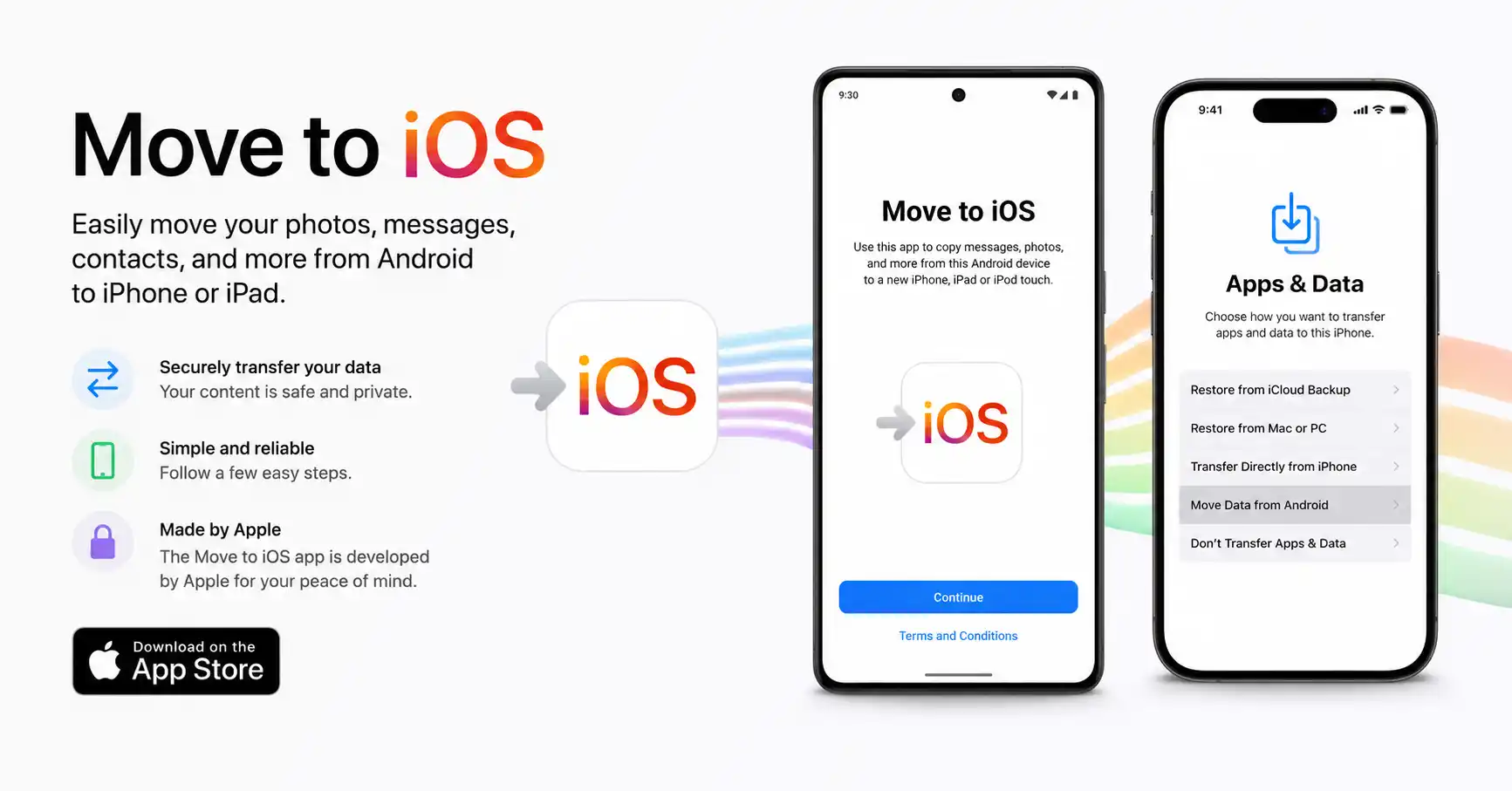
The absolute best way to handle your digital migration is by using Apple’s official utility. The Move to iOS app creates a secure, private Wi-Fi connection between your two devices to seamlessly migrate your content.
- Turn on your new iPhone: Place it near your Android device. Follow the initial onscreen setup instructions on your Apple device until you reach the “Quick Start” screen.
- Look for the Apps & Data screen: Continue setting up the iPhone manually. Stop when you see a screen titled “Apps & Data.”
- Select the transfer option: Tap on the option that says “Move Data from Android.”
- Download the app: On your Android phone, open the Google Play Store, download the Move to iOS app, and launch it.
- Generate your secure code: Tap “Continue” on your new iPhone. A six-digit or ten-digit one-time passcode will appear on the Apple screen.
- Enter the code on Android: Type this passcode into the prompt on your Android device to securely link the two phones.
- Select your data: Choose exactly what you want to transfer from the list provided.
- Wait patiently: Leave both phones completely alone. Wait for the loading bar on your iPhone to finish completely before touching either device, even if your Android says the process is done.
What successfully transfers automatically?
This method easily handles the bulk of your data. It will move your message history, camera photos and videos, web bookmarks, mail accounts, and calendars. It is also the easiest way to transfer contacts from android to iphone. Additionally, it will identify free apps available on both platforms and queue them up for download on your new device.
What doesn’t transfer automatically?
Certain proprietary files won’t make the jump. Local music files not tied to a streaming service, PDF books, and custom ringtones will be left behind. WhatsApp chat history also requires a specific step during this process, which we cover below.
Method 2: Manual Data Transfer (For Post-Setup or Troubleshooting)
Sometimes, you might have already breezed through the setup screen on your new iPhone because you couldn’t wait to play with it. If you don’t want to factory reset your Apple device to use the official app, you can still easily switch from android to iphone using manual cloud syncing.
Syncing Contacts, Calendars, and Mail via Google Account
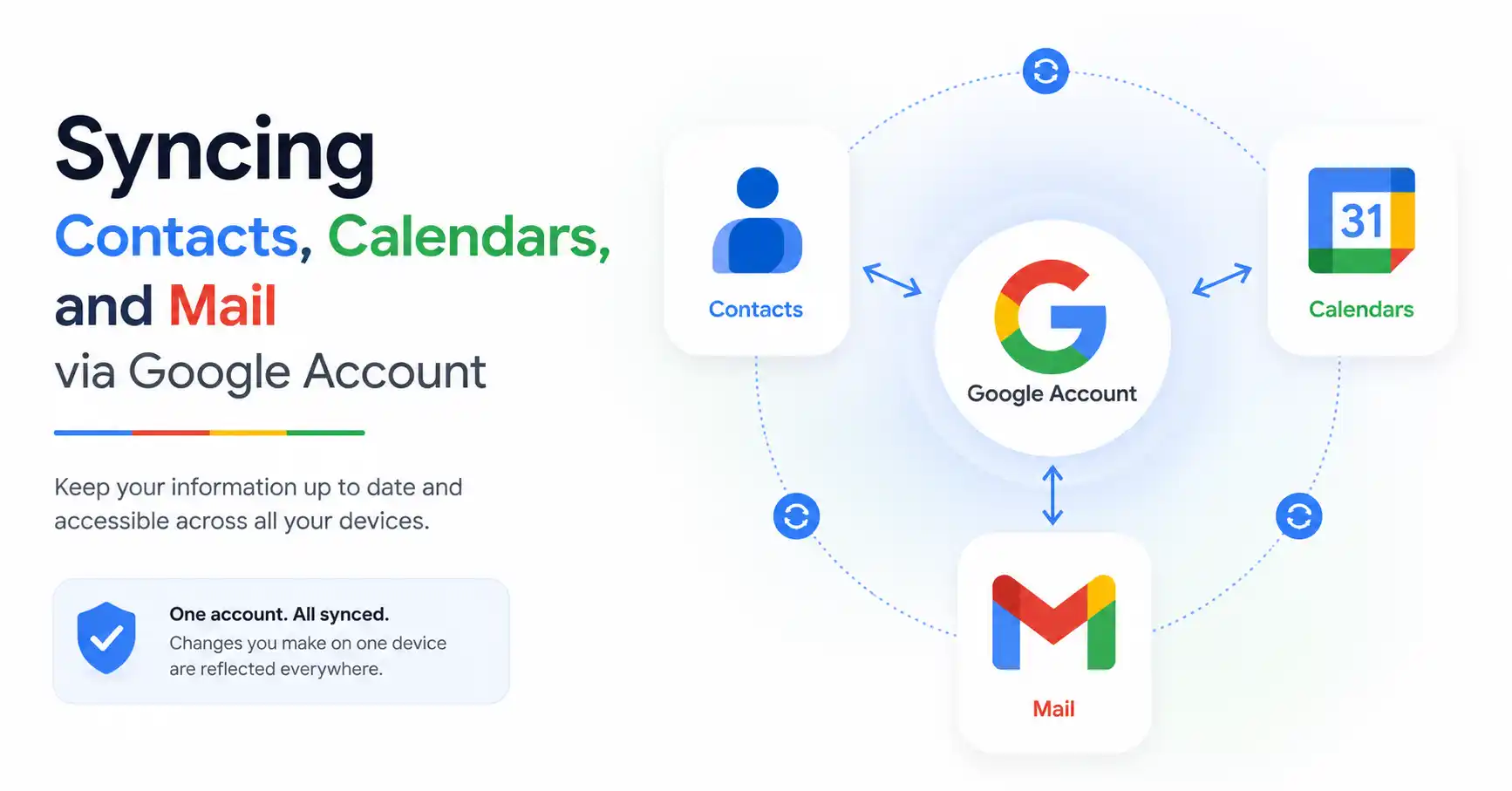
Your Google account is a powerful, invisible bridge between Android and iOS. By simply logging into your Gmail on your new Apple device, you can instantly pull over your most vital daily information.
Navigate to Settings > Mail > Accounts > Add Account on your iPhone. Choose the Google logo, log in with your primary credentials, and toggle the switches for Mail, Contacts, and Calendars to the “On” position. Your iPhone will automatically fetch this data in the background within a few minutes.
Moving Photos and Videos via Cloud Services
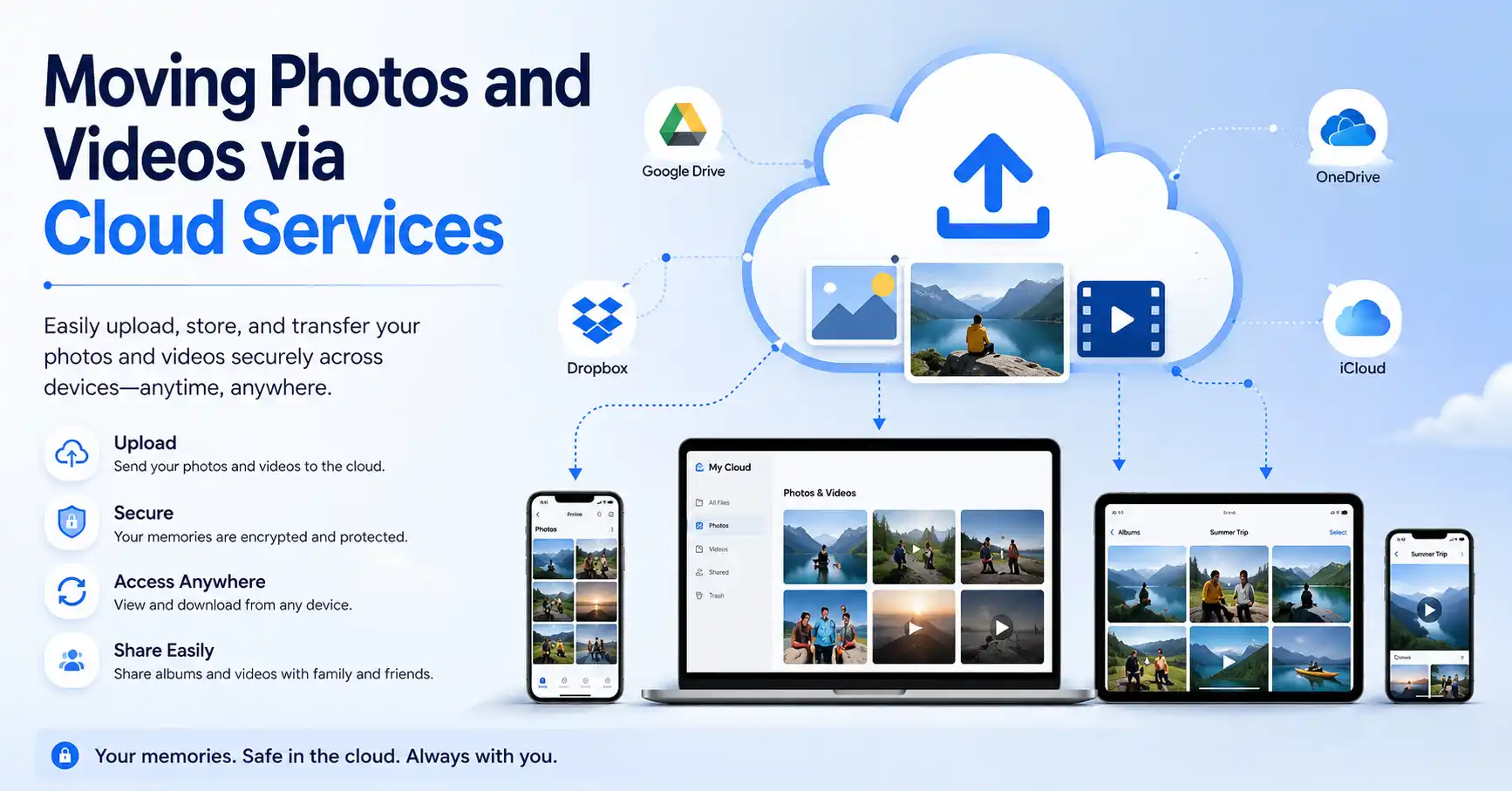
If you missed the initial transfer window, cloud storage apps are your best friend. Services like Google Photos, Google Drive, or Microsoft OneDrive make moving heavy media files incredibly easy without needing cables.
Download your preferred cloud app from the iOS App Store and log in. If you actively used Google Photos on your Android, simply installing the iOS version and logging in will immediately grant you access to your entire library. You can view them seamlessly in the cloud or download specific, favorite albums directly to your Apple camera roll.
How to Transfer Your WhatsApp Chats Across Ecosystems
For many users, their WhatsApp chat history is the most precious data on their phone. Thankfully, you can now seamlessly migrate this data, but it requires a bit of attention during the initial setup phase.
When you reach the data selection screen inside the Move to iOS app, carefully look for the WhatsApp option in the list. Tapping it will prompt WhatsApp to launch on your Android phone.
Tap “Start” to allow WhatsApp to package your data for the export process. Once your chats are prepared, you will be automatically redirected back to the migration app to complete the rest of the transfer.
After your iPhone boots up and you reach the home screen, download WhatsApp from the App Store. Log in using the exact same phone number you used previously, and you will immediately see a prompt asking if you want to finish restoring your chat history. Tap “Start” and watch your messages populate.
Frequently Asked Questions (FAQ)
1. Can I transfer data after setting up my iPhone?
Yes, but not using the official Apple utility. To use the Move to iOS app, your iPhone must be on the initial “Apps & Data” setup screen. If you already set it up, you must either erase the iPhone entirely (Settings > General > Transfer or Reset iPhone) to start over, or rely on manual cloud syncing methods.
2. Why is my Move to iOS app taking so long or failing?
The android to ios data transfer heavily relies on an uninterrupted Wi-Fi connection. If it fails, ensure both phones are plugged into wall power. More importantly, turn off cellular data on your Android and disable any active VPNs to prevent your phone from searching for a better signal and dropping the local connection.
3. Do my paid Android apps transfer to iPhone?
Unfortunately, no. While free apps that exist on both Google Play and the Apple App Store will queue up to download automatically, paid apps do not cross ecosystems. You will need to repurchase premium software on the iOS App Store. However, subscription-based services (like Netflix, Spotify, or Adobe) simply require you to download the free app and log back into your existing account.
Conclusion
Upgrading your technology should be an exciting milestone, not a stressful chore. By following this comprehensive guide on how to transfer data from android to iphone, you can confidently dive into your new Apple ecosystem with all your favorite memories, chats, and contacts securely in place.
Take your time to explore your new iOS device and ensure everything looks correct in your photo gallery and contact book. As a final precaution, remember to only perform a factory reset on your old Android phone after you have thoroughly verified that all your critical data has successfully arrived on your new iPhone. Enjoy your new device!
