

How to Install a Game with OBB on Android
- Ethan Cross
If you’ve ever tried to download a high-end mobile game outside of the Google Play Store, you’ve likely encountered more than just a single file. Modern Android titles—especially those with console-quality graphics—often come in two parts: an APK and an OBB file.
- APK (Android Package Kit): This is the installer file. Think of it as the “.exe” for Android; it contains the app’s code and basic structure.
- OBB (Opaque Binary Blob): This is the “cache” or “data” file. It houses the heavy lifting: high-resolution textures, 3D models, music, and cutscenes.
High-end games require both because the Play Store (and Android’s file system) often limits the size of a standalone APK. By splitting the assets into an OBB file, developers can deliver massive, 2GB+ experiences without breaking the installer.
Prerequisites: Getting Your Tools Ready
Before we dive into the installation, you need a few things in place to ensure a smooth process:

- A Solid File Manager: While the default “Files” app works, I highly recommend using ZArchiver or ES File Explorer. They handle compressed ZIP and RAR files much more reliably.
- Enable Unknown Sources: Android blocks installations from outside the Play Store by default.
- Go to Settings > Security (or Privacy) > Install Unknown Apps.
- Select your browser or file manager and toggle Allow from this source to On.
Step-by-Step Guide
Follow these steps in the exact order to avoid the dreaded “Download Failed” error upon launching your game.
Step 1: Download the Files
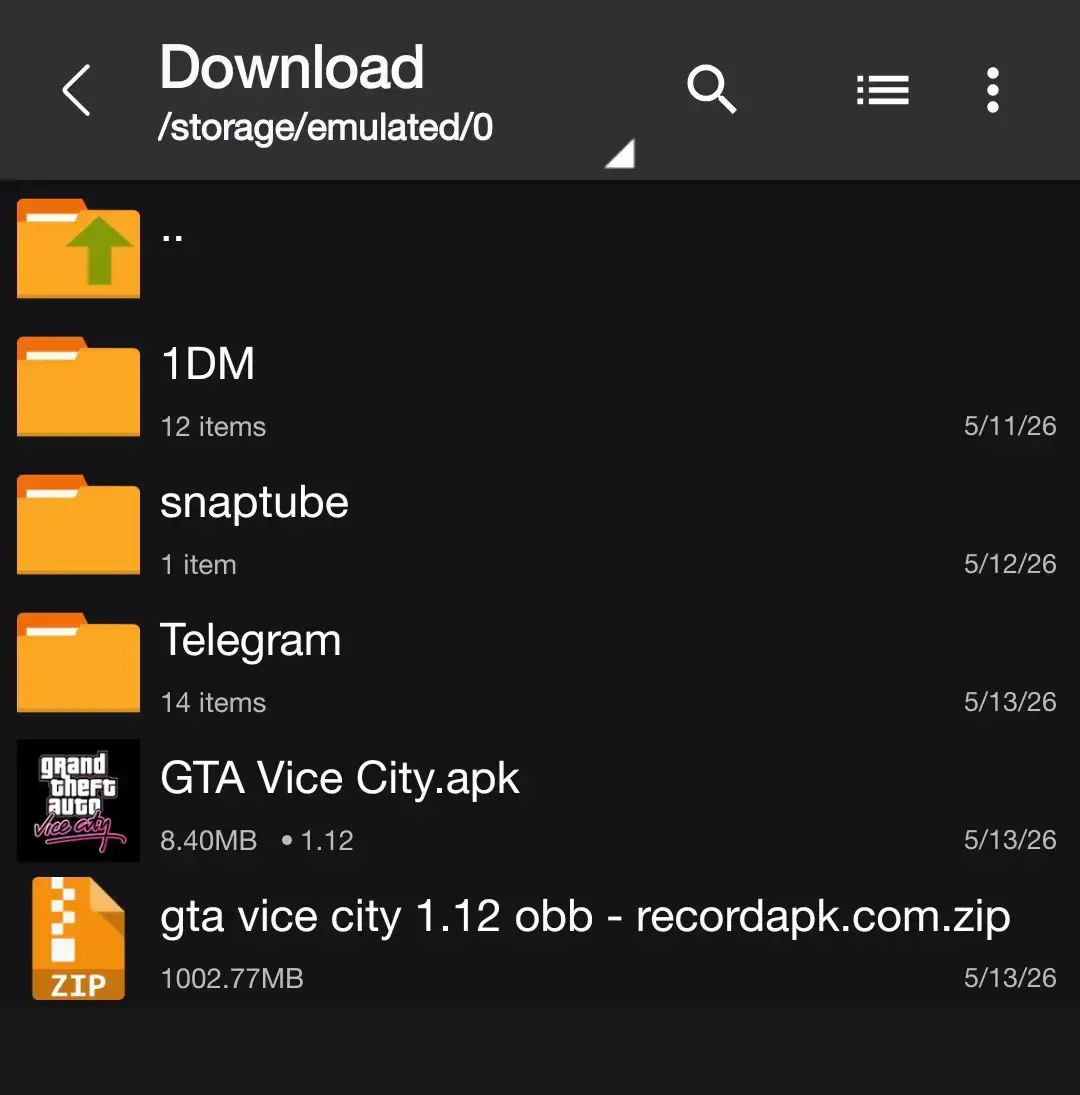
Ensure you have downloaded both the APK installer and the OBB data (usually a .zip or .rar file) to your device. Keep them in your Downloads folder for easy access.
Step 2: Install the APK
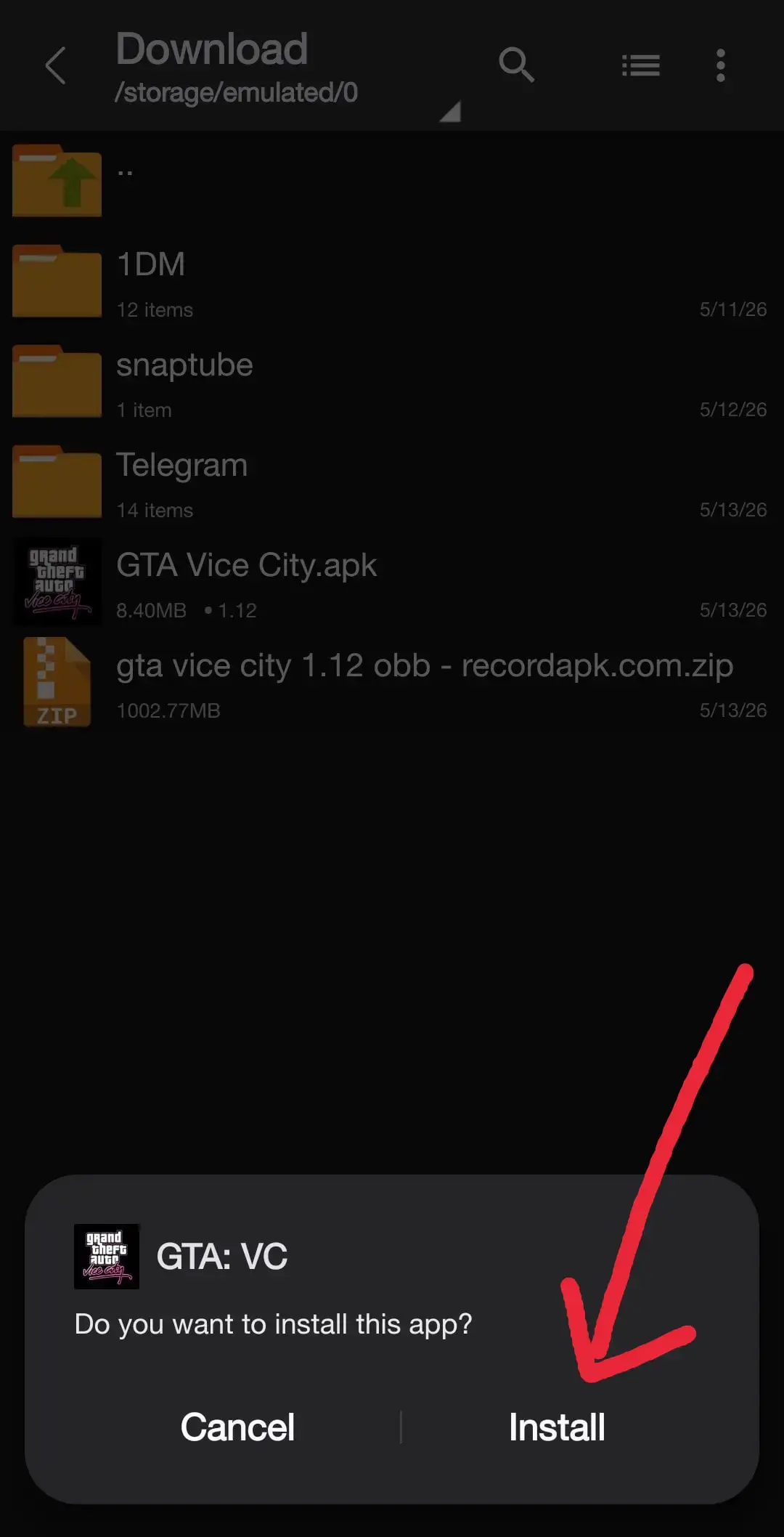
Tap on the APK file and select Install.
CRITICAL: Once the installation is finished, DO NOT tap “Open.” Instead, tap “Done.” If you open the game now, it will look for data that isn’t there yet and will likely crash or show an error.
Step 3: Extract the OBB Cache
Most OBB files are compressed to save data during download.
- Open your file manager (e.g., ZArchiver).
- Locate the OBB ZIP/RAR file.
- Tap it and select Extract. You should see a folder typically named starting with “com.” (e.g., com.rockstargames.gtavc).
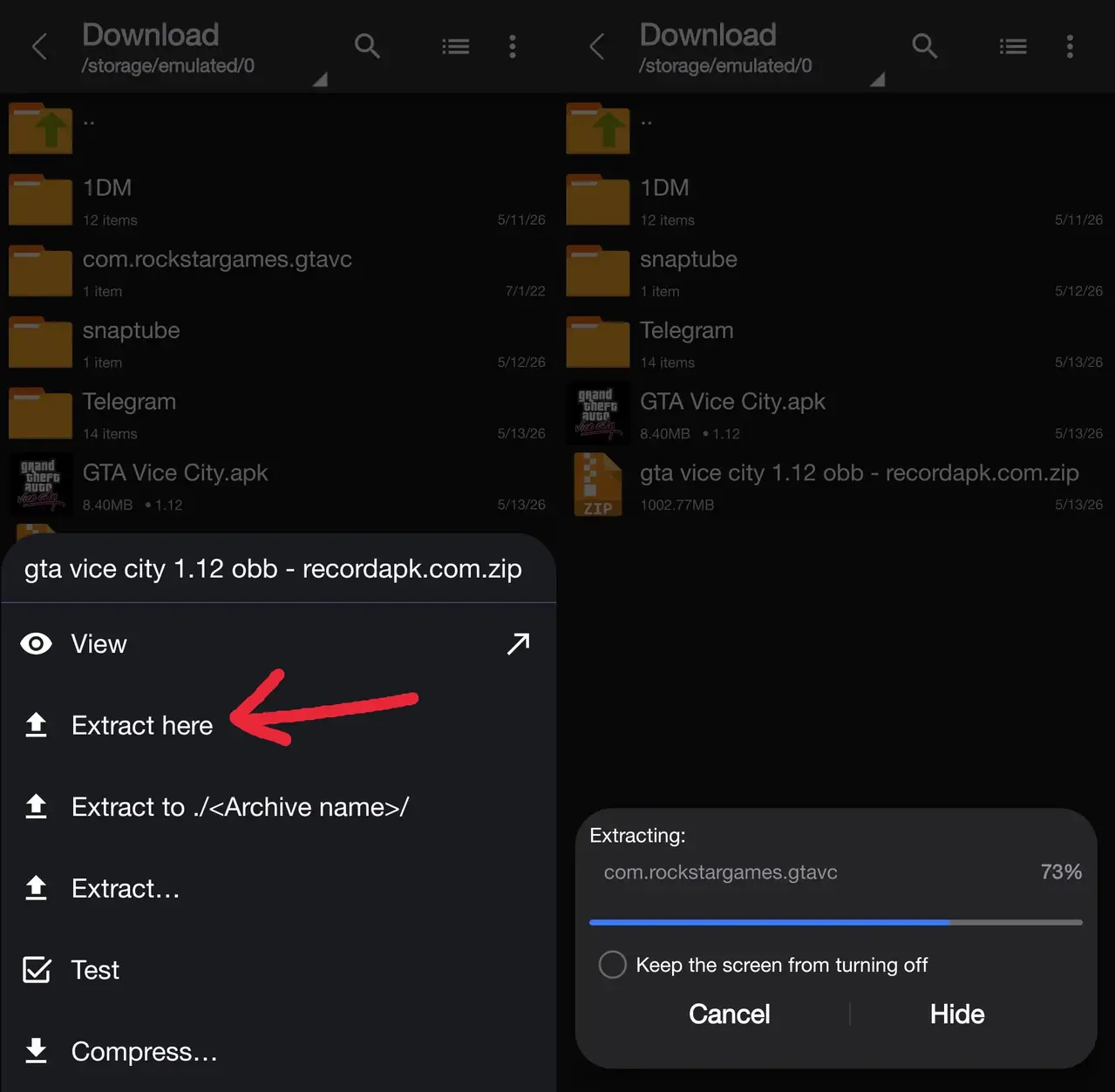
Step 4: Move the Folder to the OBB Path
Now, you need to place that folder where the Android system can find it.
- Long-press the extracted folder and select Copy or Cut.
- Navigate to the following path: Internal Storage > Android > obb.
- Paste the folder here.
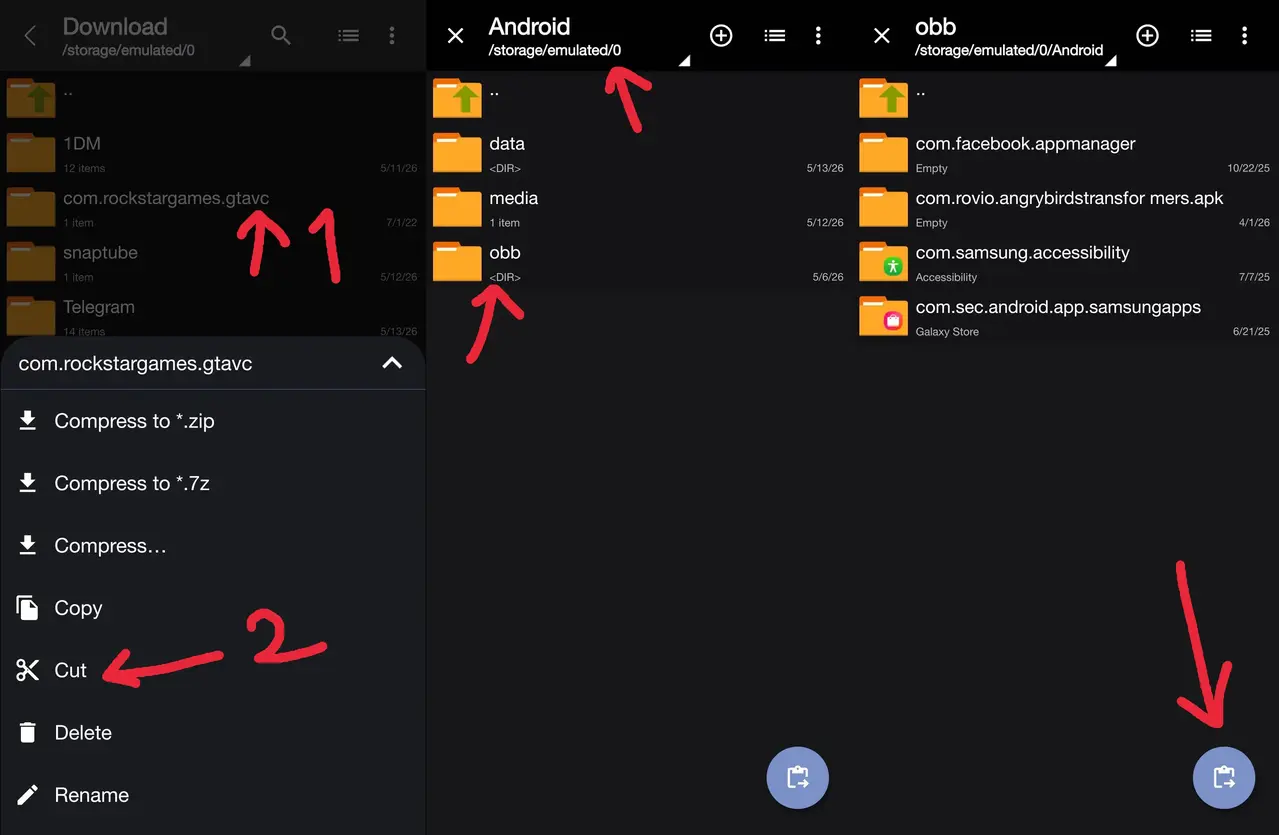
Step 5: Launch the Game
Now that the “brain” (APK) and the “body” (OBB) are in the right places, go to your app drawer and tap the game icon. It should now verify the files and start the intro sequence!
Troubleshooting Common Issues
Even for seasoned gamers, things can go sideways. Here are the three most common hiccups:
- Black Screen on Startup: This usually means the OBB file is missing or in the wrong place. Double-check that the folder is inside Android/obb/ and not accidentally nested inside another folder (e.g., obb/Folder/com.developer.game is wrong).
- “Download Failed because you may not have purchased this app”: This is a license error. It often happens if the OBB version doesn’t perfectly match the APK version, or if the game requires a one-time internet check to verify files.
- Path Not Found / Storage Permissions: Newer versions of Android (11 and above) have stricter “Scoped Storage” rules. Ensure your file manager has been granted All Files Access in your phone’s settings to write to the Android/obb directory.
⚠️ Important Note on Folder Naming
The folder you move into the obb/ directory must match the game’s internal package name exactly. It usually looks like com.companyname.gametitle. If you rename this folder, the APK will never find its data, and the game won’t run. Always keep the folder name exactly as it was when you extracted it!
